CSS Box Model properties
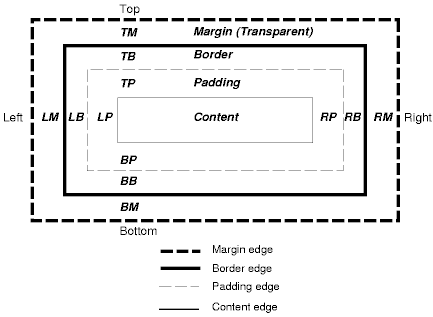
This section provides details on the margin:, padding: and border: properties of the CSS Box Model.
Margins & Padding
The margin component has five different properties;
margin-bottom:, margin-left:, margin-right:, margin-top: and margin:.
The margin: property is a short hand property incorporating the other four.
Any of the standard length values may be assigned to this property. Negative values are also permitted. These are useful to override an inherited or default value.
margin-bottom: 15px;
margin-left: 2em;
Using the margin: property, one value can be applied to all four sides.
margin: 10px;
Two, three or four values may also be specified. If two values are supplied, the first value applies to the top and bottom margins and the second to the left and right margins. With three values, the first is applied to the top margin, the second to the left and right margins and the third to the bottom margin. If there are four values, they are applied to the sides in the following (clockwise) order, top, right, bottom,left.
margin: 5px 10px 0 15px;
Padding also has five similar properties, padding-bottom:, padding-left:, padding-right:, padding-top: and padding:.
Values are specified for these properties in exactly the same way as for the margin except for the fact that negative values are not permitted with padding.
The following are examples with margins and padding being applied to a block and inline element. Background colouring has been used in these elements to highlight the effect of the margin and padding properties. The outline border is not part of the example but the width of the areas between this border and the coloured paragraph do indicate the use of margins, where specified. The first example shows a paragraph with no properties being applied and so can be used as a baseline when viewing the effect in subsequent examples.
<p style="background-color: #ff8;">
  This paragraph has no margins or padding applied to it.</p>
This paragraph has no margins or padding applied to it.
<p style="background-color: #ff8; margin-left: 100px; margin-right: 100px;">
This paragraph has a left and right margin applied to it but no padding.</p>
This paragraph has a left and right margin applied to it but no padding.
<p style="background-color: #ff8; margin: 20px 100px 20px; ">
This paragraph has a  margin applied to all sides - no padding.</p>
This paragraph has a margin applied to all sides - no padding.
<p style="background-color: #ff8; margin-left: 100px; padding-left: 50px;">
This paragraph has left  margin and padding applied to it.</p>
This paragraph has left margin and padding applied to it.
<p style="background-color: #ff8; margin: 20px 100px 20px; padding: 20px;">
This paragraph has a  margin and padding applied to all sides.</p>
This paragraph has a margin and padding applied to all sides.
<p style="background-color: #ff8; margin: 20px 100px 20px; padding: 20px;">
  This paragraph has a margin and padding applied to the block and and a
<span style="background-color: #eb2; margin; 0 20px">left/right margin</span>
 applied to the inline element.</p>
This paragraph has a margin and padding applied to the block and and a left/right margin applied to the inline element.
<p style="background-color: #ff8; margin: 20px 100px 20px; padding: 20px;">
  This paragraph has a margin and padding applied to the block and and a
  <span style="background-color: #eb2; margin; 0 20px; padding: 0 20px;">left/right margin</span>
  and padding applied to the inline element.</p>
This paragraph has a margin and padding applied to the block and and a left/right margin and padding applied to the inline element.
Borders
Border styles
The border is a little different in that there are three available types of property; colour, width and style.
Each side has a property for each type, border-top-color:, border-top-width:, border-top-style: etc.
There are short-hand properties for each side, border-top:, border-right: etc. and one for all four sides, border:.
Each type does have a default value; style is set to none, width to medium and color is inherited from the element to which the border is being applied.
Unfortunately, but as might be expected, support for these properties differs amongst browsers particularly the older versions. If a border is specified by using just one or two of these property types, the style property must be present.
Remember that the following examples may not display as expected, it all depends on which browser you are using.
<p style="border-top-width: 1px; border-top-style: dashed;">
This paragraph has a dashed top border in the default colour.</p>
This paragraph has a dashed top border in the default colour.
<p style="border-top-color: blue; border-top-style: solid;">
This paragraph has a top border in blue.</p>
This paragraph has a solid top border in blue.
<p style="border-top-width: 5px; border-top-color: blue;">
This paragraph has no top border because of no style property.</p>
This paragraph has no top border because the style property (omitted) has defaulted to none.
This example uses all three types of property.
<p style="border-top-width: 15px; border-top-color: blue; border-top-style: solid;">
This paragraph has a very wide blue top border.</p>
This paragraph has a very wide blue top border.
There are short hand properties available for each side.
<p style="border-top: solid 15px blue;">
This paragraph has a very wide blue top border.</p>
This paragraph has a very wide blue top border.
Once again a style property value must be present for a border to be displayed, but the color and/or width may be omitted.
The border: property may be used to set the same properties for all sides.
It cannot be used to set different properties for each side.
A combination of rules would be required for that, as in the second example below:
<p style="border: 5px blue dotted;">
This paragraph has a dotted blue border.</p>
This paragraph has a blue border.
<style>
  p.border {border: 5px dotted  blue;}
  p.border {border-top-color: green;
            border-bottom-style: solid;
            border-right: 15px solid;}
</style>
........
<p class="mixed_border"style="border: 5px blue dotted;">
This paragraph has a mixed variety border.</p>
This paragraph has a mixed variety border.
Note that for the example above, IE renders the right-hand border in blue but in Firefox the colour changes to the default color.
The style property can have the following values:
Border style is "none"
Border style is "solid"
Border style is "dotted"
Border style is "dashed"
Border style is "double"
Border style is "groove"
Border style is "ridge"
Border style is "inset"
Border style is "outset"
hidden is effectively the same as none except where used in tables in conjunction with the border-collapse: property (see below).
Note that hidden is not currently supported in Internet Explorer.
Collapsing borders
The border-collapse: property can be used to alter the display of borders in an HTML table.
Once again the rendering of this property varies between browsers and, yes you've guessed it, IE6 does not handle it as you might like.
By default, each table cell has its own border separated by the cell spacing set for the table, as seen in the following example.
| 1 | 2 | 3 | 4 |
| 5 | 6 | 7 | 8 |
| 9 | 10 | 11 | 12 |
Omitting the border-collapse is the same as setting its value to separate.
However if its value is set to collapse, the spacing between the cells is removed and the borders merged.
<style>
table {border-collapse: border;}
td {border: 1px #f90 dotted; padding: 5px; text-align: center;}
td.cell_red {border: 1px red solid;}
td.cell_green {border: 1px green solid;}
</style>
........
<table>
<tr><td>1</td><td>2</td><td>3</td><td>4</td></tr>
<tr><td>5</td><td class="cell_red">6</td><td class="cell_green">7</td><td>8</td></tr>
<tr><td>9</td><td>10</td><td>11</td><td>12</td></tr></table>
</table>
| 1 | 2 | 3 | 4 |
| 5 | 6 | 7 | 8 |
| 9 | 10 | 11 | 12 |
A standards-compliant browser like Firefox will render the table as expected with the borders of each cell merged into one and a complete red and green border around our selected cells.
Howvere this is not the case in Internet Explorer. In IE, where borders with conflicting styles meet, one takes precedence over the other.
As you can see (if you're using IE), it appears that where cell edges meet, the border from the first cell takes precedence over the border from the second cell, i.e bottom border overides top border from a cell below, and a right border overides the left border of the cell to the right.
The W3C specification talks about precedence dictated by the value of the border-style: property but this has no effect in IE6 and as stated above, the hidden value is not yet supported.
The colour of the border makes no difference but the width can change the precedence as seen in the example below.
<style>
table {border-collapse: border;}
td {border: 1px #f90 dotted; padding: 5px; text-align: center;}
td.cell_red {border: 2px red solid;}
td.cell_green {border: 4px green solid;}
</style>
........
<table;>
<tr><td>1</td><td>2</td><td>3</td><td>4</td></tr>
<tr><td>5</td><td class="cell_red">6</td><td class="cell_green">7</td><td>8</td></tr>
<tr><td>9</td><td>10</td><td>11</td><td>12</td></tr></table>
</table>
| 1 | 2 | 3 | 4 |
| 5 | 6 | 7 | 8 |
| 9 | 10 | 11 | 12 |
This should now look the same in Firefox and IE. Because the red cell now has wider borders than the orange cells, those edges which were previously orange are now red. The green cell now a wider border than any other cell and so its edges are now the wider green value.
Top
