
Success Criterion 1.1.1 Non-text Content: [Level A]
Non-text content can cover a variety of forms; audio, video, images, charts, diagrams, pictures, animations etc. The intent of this criterion is to provide a text alternative for those users whose disabilities impair or prohibit their access to the non-text content. It is often enough to provide a short description, or a link to a more lengthy description when required. There are cases though when the intention of the content is to create a specific sensory experience. In these cases it is probably not possible to provide a full description of the content but some explanatory notes should be provided.
Techniques
Image alternative text
A text alternative should serve the same purpose and present the same information as the original non-text content. If the non-text content were removed and replaced by the text alternative there would be no loss of functionality or information. For instance, if a link is using an image for its clickable area, the text alternative should not say what the image is but which website it is linking to.
In the following example the first image simply says what it is, i.e. a strawberry. This conveys to the user nothing at all about the purpose of the link unlike the second example where it states that the link is to a website.
 <a href="http://www.strawberrydog.co.uk"><img src="strawberrydog.gif" alt="Strawberry picture" title="Strawberry" /></a>.
<a href="http://www.strawberrydog.co.uk"><img src="strawberrydog.gif" alt="Strawberry image" title="Strawberry Dog website" ></a>.
Image Maps
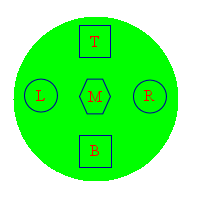
If an image were being used as an image map, each area tag of the map should have an alt attribute which conveys information about the hotspot, not just a description of what the image may look like at that point.
   <img usemap="#amap" src="../images/imageMap.gif" alt="image map example" />
   <map id="amap" name="amap">
      <area shape="rect" coords="79,25,109,57," href="#rect" title="This is the top square" />
      <area shape="rect" coords="79,135,109,167" href="#square" title="This is the bottom square" />
      <area shape="circle" coords="149,98,18" href="#circle" title="This is the right circle" />
      <area shape="circle" coords="40,96,18" href="#circle" title="This is the left circle" />
      <area shape="poly" coords="88,78,102,78,110,96,102,113,88,113,78,96" href="#poly"
     	 title="This is the middle hexagon" />
   </map>
Adjacent alternative text
Sometimes the text required for a description of non-text content is a little too lengthy and means other than using the title tag must be used.
For instance, suppose we have an image of the group standings from a sports competition. The title tag may still be used to describe the subject matter but is not suitable to describe the details. In this case it should be accompanied by text explaining what the image is about and describe some of the more important aspects of it, such as who the top team is.
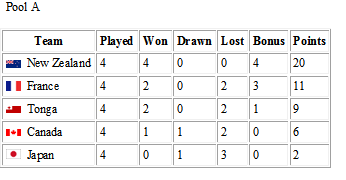
This image shows the final standings from pool A. New Zealand is the winner of the group with 20 points and the runner-up is France with 11 points.
Non adjacent alternative text
It may not be feasible for a description to be immediately adjacent to the non-text object. In this case the description may be held in another location and referenced by some adjacent text.
Pool A group standings.
See bottom of page for a brief description or go to the groups page for a full coverage of all the the pools.
Control assistance
Sometimes the non-text content may be a control. If the control is other than a standard HTML form control, for instance, an embedded applet which provides an interactive game using a mouse. If amouse is not available because of the disability a description should be provided to explain what the game is about. For example, "An interactive game about a software company where you can use the mouse and keyboard to target and shoot as many as project managers as possible to earn maximum points".
If the non-text content is a standard HTML control, HTML tags and attributes properly used help to identify the purpose of the control.
The use of explicit and implicit labels are in the HTML and XHTML specifications. However some screen readers have a problem reading implicit labels and it is recommended to always use an explicit label for a form control.
The label is associated to the control by the for attribute which must match the control's id value. Although the name attribute may not necessarily match the id attribute both must be present. An additional benefit of providing a label is that this will also be clickable and thereby increase the clickable area for that control. Note that labels are not used for any kind of button control as the name will be taken from the value attribute.
Note:
For checkboxes and radio buttons, the label tag should follow the control.
For a group of checkboxes and radio buttons a label tag should be provided for each control.
<input type="radio" name="sex" id="f" /><label for="f">Female</label>
<input type="radio" name="sex" id="h" /><label for="h">Hermaphrodite</label>
A common mistake is to omit a label for a drop down list. It can be applied to the select element.
<select name="islands" id="islands">
<option value="" selected="selected" >Select an island ...</option>
<option value="B">Barbados</option>
<option value="J">Jamaica</option>
<option value="A">Antigua</option>
<option value="T">Trinidad</option>
</select>
label tag alternative
In some cases it is not possible to use a label tag. There may be no text on the screen that could be identified as a label or it might be confusing to actually display one. In these cases the 'title' attribute should be used.
Take the case of a typical text box where a search item may be enterered immediately followed by a search button. In this case it evident from the visual display that items are typed in the box prior to the search button being clicked. Screen readers do not have this advantage so we must indicate what the use of the text box is.
Another common use might be where an input field is split in to multiple text boxes, for instance a telephone number
Please note that this is only one possible format of a British phone number.
Failures
As with many of the common failures for the success criteria, many of them can be eliminated by coding valid HTML and using recommended and best practices.
Text alternatives that are not alternatives
The vague use of expressions such as "image", "picture" as short descriptions text are not acceptable.
Similarly describing a chart or graph by using the file name also does not convey much meaning.
<span class="imagetitle">pool.png</span>
Pool.png
Unecessary text-alternatives
Conversely, failure can also occur when an unnecessary text alternative is provided. In the case when an image is purely for decoration and does not convey any meaning or purpose, its alternative text should be null. In the following example the once popular 'space.gif' has been used to separate a series of images of trees. The fact that alt text has been provided for the spacer image could confuse the user into thinking that it is an image of a spacer tree!
<img src="spacer.gif" width="100" height="1" alt="spacer"/>
<img src="ash.gif" width="100" height="1" alt="ash tree"/>
<img src="spacer.gif" width="100" height="1" alt="spacer"/>
<img src="willow.gif" width="100" height="1" alt="willow tree"/>
<img src="spacer.gif" width="100" height="1" alt=""/>
<img src="ash.gif" width="100" height="1" alt="ash tree"/>
<img src="spacer.gif" width="100" height="1" alt=""/>
<img src="willow.gif" width="100" height="1" alt="willow tree"/>
It is important that the alt attribute be provided for all images. If it were to be omitted from these spacer images, assitive technologies will not know that these images may be ignored.
Text alternatives not kept up to date
If non-text content, such as an image, is likely to change then the description must also be changed to keep it up to date.
This image shows the current standings from pool A. France is currently leading with 11 points with New Zealand in second place with 10 points.
Using CSS background images
If an image which conveys important text is used as background image then there is no opportunity to provide a text alternative and the meaning of the image is completely lost. In the following example a background image is being used for a button. A screen reader can't read an image and there is no text alternative provided so unless the user has some visual capability there is no clue whatsoever as to the purpose of the button.
background: transparent url(images/back.gif) no-repeat;
}
....
<button id="back" ><span></span></button>